

How to Take Stunning Portrait Photos With Your Phone
Great portrait photography doesn’t require a full-frame camera and a bag full of lenses. Phone-only portrait sessions routinely produce results that surprise even experienced photographers.
TL;DR
Light and composition matter more than sensor size — a 3-year-old mid-range phone beats a flagship in bad light.
Google Pixel 9 and iPhone 16 use AI-powered depth mapping to simulate shallow depth-of-field portraits.
Golden hour, overcast days, and window light are free portrait lighting setups that outperform on-camera flash.
The truth is, your phone is already capable of professional-looking portraits — most people just don’t know how to use it properly.
This isn’t about buying the newest iPhone 16 Pro or the Samsung Galaxy S25 Ultra. It’s about understanding light, composition, and a handful of settings that most people completely ignore. Get those right, and the difference is night and day.
Why Does Your Phone Struggle With Portraits Sometimes?
The biggest issue isn’t the sensor — it’s the physics. Smartphone cameras have tiny lenses, which makes it hard to naturally separate a subject from the background the way a 50mm f/1.8 lens would on a DSLR.
That said, modern phones have gotten remarkably clever about faking it. Computational photography — the software that processes your image after you press the shutter — has become genuinely impressive. Phones like the Google Pixel 9 and iPhone 16 use AI-powered depth mapping to simulate that shallow depth-of-field look.
But here’s what most people miss: even with all that processing power, bad light and poor composition will always produce a mediocre photo. The gear matters less than the fundamentals.
What’s the Best Lighting Setup for Phone Portraits?
Lighting is the single most important variable in portrait photography, full stop. A three-year-old mid-range phone in good light consistently outperforms a flagship device in harsh midday sun.
Here’s what actually works:
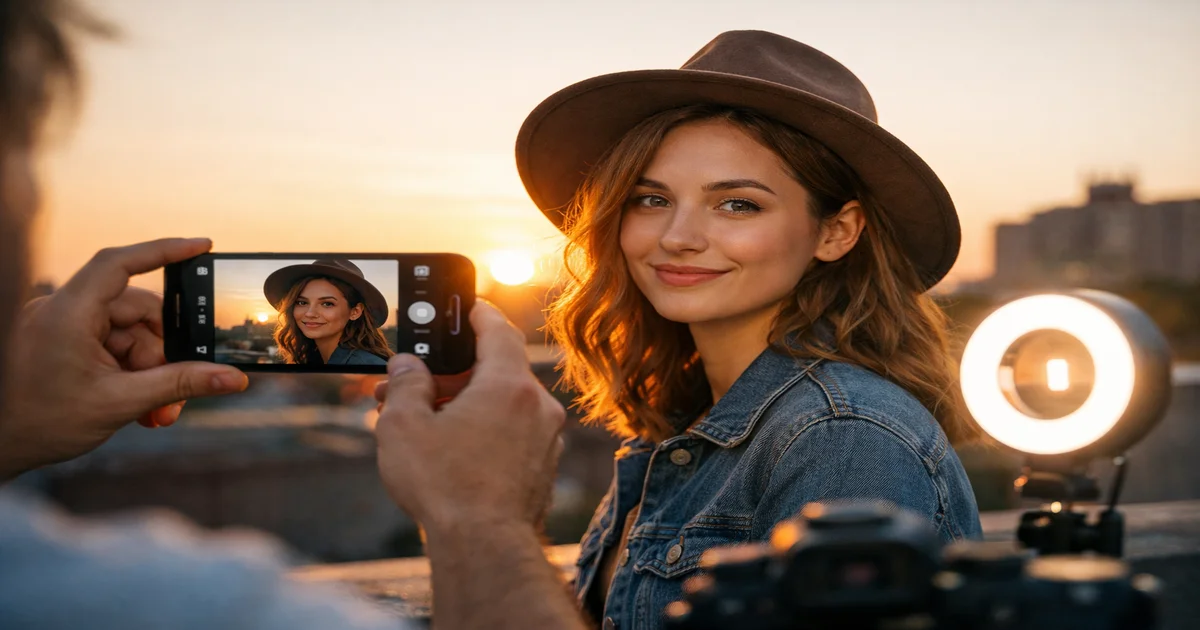
- Golden hour (the hour after sunrise or before sunset) wraps your subject in warm, soft, flattering light that’s almost impossible to replicate artificially
- Overcast days act like a giant softbox — the clouds diffuse sunlight evenly and eliminate harsh shadows under eyes and noses
- Open shade (standing near a building or tree that blocks direct sun) gives you soft, even light without the color cast that full shade sometimes creates
- Window light indoors is your best friend — position your subject facing a large window and you have a natural studio setup for free
Avoid direct overhead sun between 10am and 3pm. It creates unflattering shadows and causes your subject to squint. If you absolutely have to shoot in harsh light, find shade or use a reflector (even a white piece of cardboard works).
How Do You Get That Blurry Background on a Phone?
That creamy, blurred background — photographers call it bokeh — is what separates a snapshot from a portrait. On a phone, you have two ways to get it.
Option 1: Use Portrait Mode. Every major phone released in the last four years has it. On iPhone, it’s called Portrait mode. On Samsung, it’s Live Focus. On Google Pixel, it’s just Portrait. These modes use software to detect your subject and blur everything behind them.
Portrait Mode works best when:
- Your subject is 3–5 feet away from you
- There’s clear contrast between the subject and background
- You’re shooting in decent light
Option 2: Use distance and real optics. Get close to your subject and put distance between them and the background. Even without Portrait Mode, a subject standing 2 feet in front of a wall versus 15 feet in front of it will produce noticeably more background separation.
Honestly, I prefer combining both. Shoot in Portrait Mode but also position your subject with real distance from the background. The result looks far more natural than software blur alone.
Which Camera Settings Actually Matter for Portraits?
Most people leave their phone on full auto and hope for the best. That’s fine, but you’re leaving a lot of quality on the table.
Lock your exposure and focus separately. On iPhone, tap and hold on your subject’s face to lock focus, then slide the sun icon up or down to adjust exposure. On Android, most camera apps let you tap to focus and use a separate slider for brightness. This prevents the camera from blowing out the background and underexposing your subject’s face.
Use the 2x or 3x lens, not the main wide lens. This is a big one. The ultra-wide and main lenses on most phones introduce slight distortion at close range — it can make noses look bigger and faces look wider. The 2x telephoto lens (or 3x on Pro models) gives you a more flattering, natural compression similar to a classic portrait lens.
Shoot in RAW if you plan to edit. Apps like Lightroom Mobile, ProCamera, and even the native camera on many Android phones let you capture RAW files. These hold far more detail in highlights and shadows, giving you much more flexibility when editing afterward.
Shooting in RAW versus JPEG can recover detail that simply doesn’t exist in a compressed file
— especially in tricky lighting situations like backlit portraits.
How Should You Compose a Portrait on a Phone?
Composition is where most beginners lose points without realizing it. A technically sharp photo with flat composition still looks like a snapshot.
A few rules I keep coming back to:
- Don’t center your subject every time. Use the rule of thirds — position the eyes along the top horizontal line of your grid (turn on grid lines in your camera settings if they’re not already on)
- Get eye-level or slightly below. Shooting down at someone makes them look smaller and can distort facial features. Crouch if you need to
- Watch your background. Before you shoot, scan the frame for poles, trees, or bright spots that look like they’re growing out of your subject’s head. Move yourself or your subject a few steps to fix it
- Fill the frame more than you think. Beginners tend to shoot too wide. Get closer. Eyes and expression are what make portraits powerful — give them space to breathe in the frame
The most interesting portraits often break the rules deliberately. Once you understand the basics, experiment with negative space, unusual angles, and environmental context.
Does Editing Make a Big Difference for Phone Portraits?
Short answer: yes, massively. Even a basic edit in Lightroom Mobile can transform a flat phone photo into something that looks polished and intentional.
A standard portrait edit workflow in Lightroom Mobile (free version):
- Exposure — bring it up slightly if the face looks dark
- Highlights — pull them down to recover any blown-out sky or bright backgrounds
- Shadows — lift shadows to open up dark areas in the face
- Clarity — reduce slightly for skin (negative clarity softens skin texture naturally)
- HSL panel — desaturate oranges and reds slightly to calm down skin tones
- Crop — tighten the composition if needed
This whole process takes under three minutes once familiar. The difference between the original file and the edited version is consistently dramatic.
Apps worth knowing: Lightroom Mobile, Snapseed (free, excellent), VSCO for film-style presets, and Facetune 2 if you want skin retouching tools (use it subtly — overdone retouching looks worse than none at all).
What Are the Most Common Mistakes People Make?
Beginner portrait shots tend to repeat the same mistakes constantly.
Shooting in Portrait Mode in bad light. The software blur looks terrible when there isn’t enough light — edges get messy and the subject looks like they’ve been cut out with scissors. In low light, turn Portrait Mode off and embrace the natural look.
Using the front camera for “serious” portraits. The front camera is fine for selfies, but the rear camera has a significantly better sensor, better optics, and better processing. If you want quality, flip the phone around and use a timer or ask someone to tap the shutter for you.
Forgetting to clean the lens. I know this sounds obvious, but a smudged lens creates haze and reduces contrast noticeably. Wipe it before every shoot.
Over-relying on zoom. Digital zoom (anything beyond your phone’s optical zoom range) degrades image quality fast. If you need to get closer, physically move your feet.
The single biggest upgrade most people can make is simply moving closer to their subject
— it changes the feel of the photo entirely.
Conclusion
Here’s what I’d tell anyone starting out: stop waiting for better gear. The phone in your pocket right now, used with good light, a thoughtful composition, and the 2x lens, will produce portraits that surprise you.
Start with one thing — light. Get obsessed with finding good light before you touch any settings. Once that clicks, move on to composition. Then settings. Then editing. Layer the skills one at a time rather than trying to master everything at once.
Portrait photography is ultimately about connecting with your subject and capturing something real. The phone is just the tool. You’re the photographer.
Frequently Asked Questions
-
What phone setting is most important for portrait photos?
Locking focus and exposure separately makes the biggest difference. Tap and hold on your subject’s face to prevent the camera from auto-adjusting while you frame the shot. -
Is Portrait Mode worth using on a smartphone?
Yes, but only in good light. In low light, the software blur looks artificial and messy — switch it off and shoot naturally when light is limited. -
How do I get a blurry background without Portrait Mode?
Get physically close to your subject (3–5 feet) and put as much distance as possible between them and the background. Use the 2x telephoto lens for the most natural result. -
Should I shoot in RAW or JPEG on my phone?
RAW if you plan to edit — it holds far more detail and gives you much more control in post. JPEG is fine if you want a quick, ready-to-share result straight from the camera. -
What’s the best free app for editing portrait photos on a phone?
Snapseed is hard to beat for free editing — it’s powerful, intuitive, and has a portrait healing brush. Lightroom Mobile’s free tier is excellent if you want more precise control over color and tone.